


You can send mass emails as an effective and budget-friendly strategy. This article covers the best practices for mass emails. We give you tips and tricks and show you the right tools to get the most out of your campaigns.
By the end, you’ll be ready to grow an audience and start effective mailing campaigns.
Let’s get started.
What Are Mass Emails?
Mass emails are messages sent to many recipients at once. They are also called bulk emails or email blasts.
Mass emails are part of a larger marketing strategy. Companies use them to send newsletters, promotional offers, product updates or announcements to their entire contact list or specific segments.
Unlike transactional emails that go to one person at a time, mass emails reach hundreds or thousands of users at once. When you execute them correctly, they provide a cost-effective way to maintain communication with your audience and drive engagement.
What Is the Difference Between Mass Email and Spam?
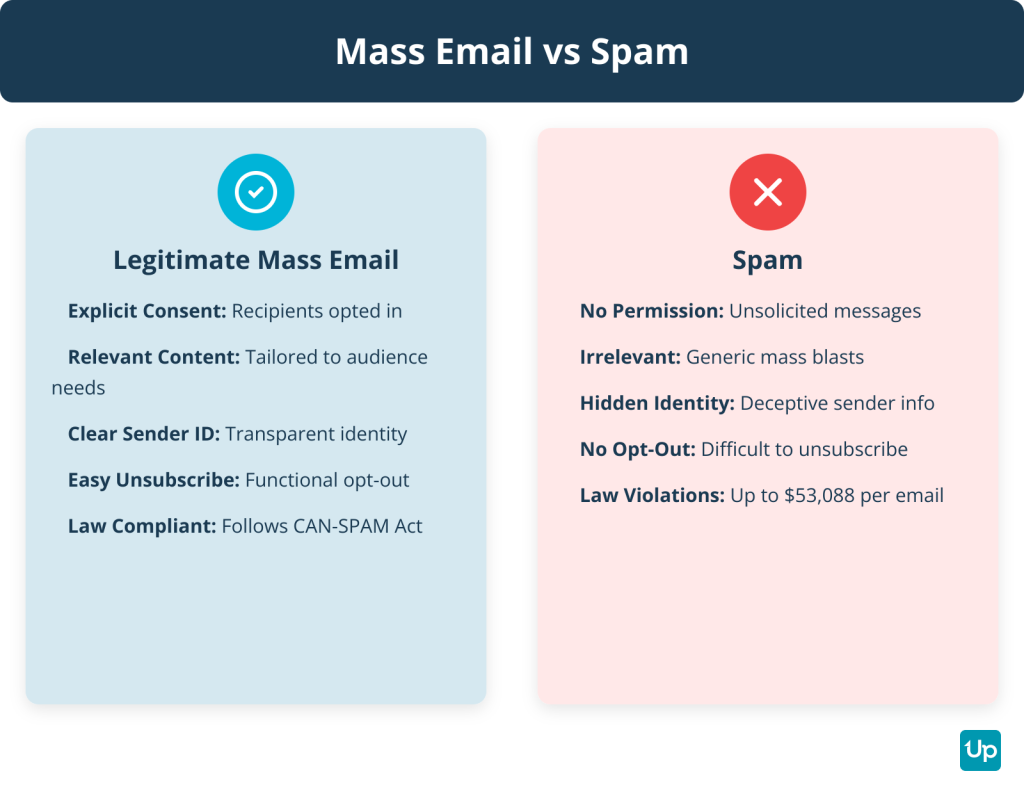
The difference between mass email and spam lies in consent, relevance and compliance.
Mass email is legitimate communication sent to users who opted in to receive messages from you. These recipients expect your emails and find them relevant. They have a clear way to unsubscribe at any time.
Spam is unsolicited bulk email sent to recipients who never gave permission. Spam messages often use deceptive subject lines and hide the sender’s identity. They make it difficult or impossible to opt out. Spam violates anti-spam laws like the CAN-SPAM Act and damages your sender reputation.
The key factors that separate mass email from spam include:
- Explicit consent from recipients
- Relevant content tailored to the audience
- Clear identification of the sender
- An easy and functional unsubscribe mechanism
- Compliance with email marketing laws
When you follow these principles, your mass email campaigns build trust and deliver value instead of frustrating recipients and harming your brand.
Why Can’t You Use Gmail and Outlook for True Mass Emailing?
You can’t use Gmail and Outlook for true mass emailing because they are designed for personal communication, not bulk sending.
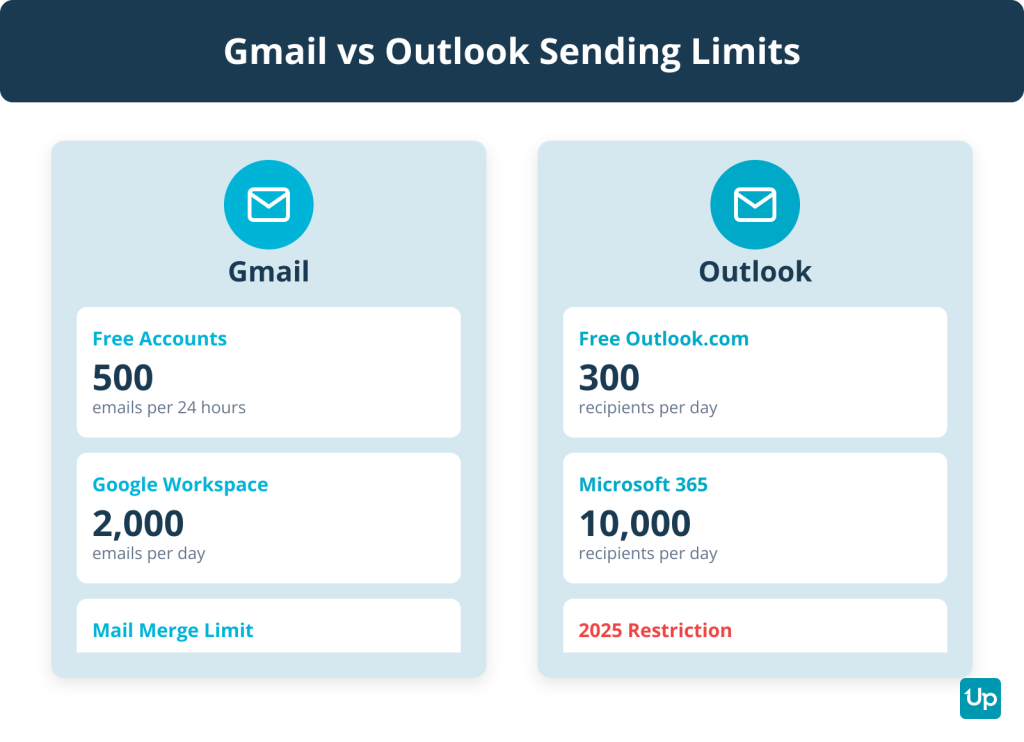
Both platforms impose strict sending limits. Free Gmail accounts allow you to send to only 500 recipients in a rolling 24-hour period. Paid Google Workspace accounts increase this limit to 2,000 emails per day per user. Free Outlook.com accounts limit you to 300 recipients per day. Paid Microsoft 365 accounts allow up to 10,000 recipients per day but with a new restriction starting January 2025: only 2,000 of those can be external recipients.
Beyond these limits, using Gmail or Outlook for bulk email creates serious deliverability problems. Internet service providers (ISPs) flag high-volume sending from personal email platforms as suspicious behavior. This damages your sender reputation. It increases the chances that your emails land in spam folders instead of inboxes.
Gmail and Outlook also lack essential mass email features. You won’t get access to audience segmentation, automation workflows, A/B testing, detailed analytics or professional email templates. You also miss critical compliance tools like automated unsubscribe management. This puts you at risk of violating anti-spam laws.
For these reasons, businesses serious about mass emailing need a dedicated email service provider.
What Are the Benefits of Using a Dedicated Mass Email Service?
A dedicated mass email service offers significant advantages over standard inboxes like Gmail or Outlook.
These benefits fall into five main categories:
Deliverability and Reputation: Email service providers (ESPs) manage IP reputation and authentication protocols like SPF, DKIM and DMARC to prove legitimacy. This reduces the chances of emails landing in spam folders. Sending mass emails from a standard inbox can damage your domain’s sender reputation. It can lead to being blacklisted by ISPs.
Scalability: Standard inboxes have strict sending limits. Professional services are built to send large volumes without these restrictions. You can reach thousands of recipients without worrying about daily caps.
Analytics and Insights: ESPs provide detailed analytics unavailable in standard inboxes. You get access to open rates, click-through rates (CTR), bounce rates, unsubscribe rates and conversion rates for measuring campaign ROI. You can also run A/B tests to optimize subject lines, content and send times.
Automation and Efficiency: Professional platforms offer powerful automation features. You can create automated workflows (drip campaigns) triggered by user actions. You also get tools for list segmentation. This allows for personalized and targeted content at scale.
Legal Compliance: ESPs help businesses comply with anti-spam laws like the CAN-SPAM Act. They automatically include mandatory features like clear unsubscribe links. They manage opt-out requests. This protects you from legal penalties that can reach up to $53,088 per violation.
What Is Email Deliverability and Why Is It Critical?
Email deliverability refers to the ability of an email to reach the recipient’s inbox rather than being filtered into a spam or junk folder.
It is the measure of inbox placement. This is critical for an email to be seen and engaged with. You need to distinguish between deliverability and delivery.
Email Delivery means that the recipient’s mail server accepted the email. The email didn’t hard bounce.
Email Deliverability determines where the email lands after the server accepts it. It could land in the primary inbox, the promotions tab or the spam folder.
You can have a high delivery rate but poor deliverability if all your emails go to spam.
Poor deliverability means that marketing efforts are wasted. The intended audience never sees the message. This impacts open rates, engagement and overall ROI.
Key factors that influence deliverability include sender reputation (the most important factor), email authentication (SPF, DKIM, DMARC), list quality and hygiene, recipient engagement and email content quality.
What Are the Best Mass Email Tools for Every Use Case in 2025?
The best mass email tools for 2025 depend on your specific use case. Some platforms excel at e-commerce marketing. Others are built for cold outreach or content creators.
Most mass email tools can be categorized into cold email outreach tools or marketing automation tools. Cold email outreach tools send emails to cold prospects with features optimized for sales. Marketing automation tools send email blasts to defined contact lists with powerful automation capabilities.
Below, we’ve organized the top mass email tools by category to help you find the right fit.
Best for E-commerce and Retail
Omnisend
Best For: Small to large e-commerce businesses, particularly Shopify users, who want a powerful, easy-to-use and affordable all-in-one marketing automation platform.
Key Features: Omnichannel marketing that integrates email, SMS and web push notifications. Deep e-commerce integration with Shopify, BigCommerce and WooCommerce. 33+ pre-built automation workflows for cart abandonment, welcome series and cross-selling. Advanced segmentation based on shopping behavior.
Pricing: Free Plan: $0/month for 500 emails/month to 250 contacts, 60 SMS, 500 web push notifications. Includes automation and segmentation with Omnisend branding. Standard Plan: $16/month for 6,000 emails/month, unlimited web push, 24/7 live chat support, branding removed. Pro Plan: $59/month for unlimited emails plus free SMS credits equivalent to plan price.
Pros:
- Designed for e-commerce with deep platform integrations
- Generous free plan with advanced features
- Combines email, SMS and push seamlessly
Cons:
- Free plan has low sending limits (500 emails/mo to 250 contacts)
- Fewer email templates (~200) and integrations (160+) compared to some competitors
- Not ideal for non-e-commerce or B2B businesses
Best for Small Businesses and Startups
MailerLite
Best For: Beginners, bloggers, freelancers and small businesses who want affordable and easy-to-use email marketing with strong core features and a generous free plan.
Key Features: Drag-and-drop email editor. Website and landing page builder. Email marketing automation with visual workflow builder. Audience segmentation. A/B split testing. Signup forms and pop-ups.
Pricing: Free Plan: Up to 500 subscribers (reduced from 1,000 effective September 23, 2025), up to 12,000 emails per month. Includes 1 website, 10 landing pages, unlimited pop-ups and forms, drag-and-drop editor, email automation builder, A/B testing, with MailerLite branding. Growing Business: $10/month for up to 500 subscribers with unlimited monthly emails. Advanced: $20/month adds unlimited users and 24/7 live chat support.
Pros:
- Generous free plan even with reduced subscriber limit
- User-friendly interface great for beginners
- Affordable straightforward pricing
Cons:
- Automation features less advanced compared to some competitors
- Basic reporting and analytics
- Live chat support only on Advanced plan
Sender
Best For: Small to medium-sized businesses, especially in e-commerce, who want a highly affordable all-in-one platform for both email and SMS marketing with a generous free entry point.
Key Features: Omnichannel marketing with Email and SMS campaigns on one platform. Drag-and-drop email builder and pre-designed templates. Marketing automation with pre-built workflows. Lead generation tools like popups and landing pages. Audience segmentation.
Pricing: Free Forever Plan: Up to 2,500 subscribers, up to 15,000 emails per month. Includes all features like email automation, signup forms, popups, landing pages, with Sender branding and 24/7 email and live chat support. Standard: $11/month for up to 5,000 subscribers and 60,000 emails/month. Professional: $22/month for 10,000 subscribers. Enterprise: Custom pricing.
Pros:
- Generous Free Forever plan with high subscriber (2,500) and email (15,000/mo) limits
- Combines email and SMS marketing in one platform
- 24/7 live chat support even for free users
Cons:
- Fewer third-party integrations compared to larger competitors
- Automation capabilities solid for price but may be too basic for advanced users
Brevo (formerly Sendinblue)
Best For: Small to medium-sized businesses who want an affordable all-in-one marketing and sales platform. Startups and bloggers who can work within free plan limits.
Key Features: Multi-channel marketing (Email, SMS, WhatsApp, Live Chat). Built-in Sales CRM even on free plan. Automation workflow builder. Transactional emails. Generous free plan with high contact limit but 300 emails/day restriction.
Pricing: Free Plan: $0/month for 300 emails per day (9,000/month) to up to 100,000 contacts. Includes drag-and-drop editor, basic reporting, marketing automation (up to 2,000 contacts), Sales CRM, transactional emails, with Brevo branding. Starter Plan: ~$9/month for 5,000 emails/month, removes daily sending limit. Standard/Business Plan: ~$18/month for 5,000 emails/month, adds unlimited automation, A/B testing, landing pages, advanced reporting.
Pros:
- Built-in Sales CRM even on free plan
- Multi-channel marketing capabilities
- High contact limit on free plan (100,000)
Cons:
- Free plan limited to 300 emails per day
- Automation limited to 2,000 contacts on free plan
- Interface can be less intuitive than competitors
Constant Contact
Best For: Small businesses, beginners and non-profit organizations. Especially those who run events often and need an all-in-one tool for email and event marketing.
Key Features: Drag-and-drop editor. Large library of mobile-responsive templates. AI content generator. Real-time reporting. Marketing automation. Event marketing with landing pages and ticket sales available on all plans. 300+ integrations including Shopify and Salesforce.
Pricing: No free plan available, but 30-day free trial allows up to 100 emails total. Lite: $12/month for up to 500 contacts. Standard: $35/month for up to 500 contacts. Premium: $80/month for up to 500 contacts. Non-profits get 20% discount for 6-month prepay and 30% discount for 12-month prepay.
Pros:
- User-friendly interface with drag-and-drop editor great for beginners
- Strong event marketing capabilities integrated into all plans
- Special discounts for non-profits
Cons:
- No forever-free plan available
- More expensive than some competitors especially as contact list grows
- A/B testing limited to subject lines only
Best for Content Creators and Bloggers
ConvertKit
Best For: Content creators, bloggers, podcasters and online course creators who need powerful automation and audience segmentation.
Key Features: Visual automation builder. Landing page and form builder. Audience tagging and segmentation. Email sequences and broadcasts. Creator-focused templates.
Pricing: Free Plan: Up to 1,000 subscribers with unlimited email sends, landing pages and forms. Creator Plan: Starts at $15/month for advanced features and automation. Creator Pro: Starts at $29/month for advanced reporting and subscriber scoring.
Pros:
- Built for creators with creator-friendly features
- Powerful automation and tagging system
- Clean, simple interface
Cons:
- Limited email template designs
- More expensive than some alternatives
- Fewer integrations compared to larger platforms
Mailchimp
Best For: Beginners and businesses willing to pay premium for brand recognition and polished user experience.
Key Features: Drag-and-drop email builder. Extensive template library. Marketing CRM. Audience segmentation. Basic automation. Landing pages. Integrations with major platforms.
Pricing: Free Plan: Up to 500 contacts and 1,000 email sends per month (daily limit of 500). Includes basic CRM, 1 audience list, landing pages, single-step automations, with Mailchimp branding. Essentials: $13/month. Standard: $20/month. Premium: $350/month.
Pros:
- Highly recognized brand with polished interface
- Extensive template library
- Good for beginners
Cons:
- Free plan reduced from previous 2,000 contacts to 500
- Charges for all contacts including unsubscribed ones
- Multiple price increases since 2022
Best for Cold Email Outreach
Lemlist
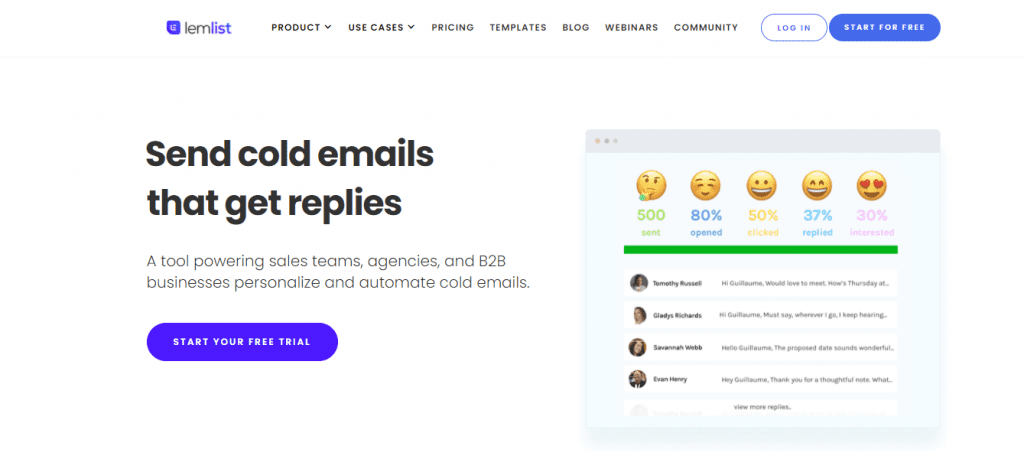
Best For: B2B sales teams, agencies and solopreneurs who want highly personalized multichannel outreach campaigns with strong deliverability focus.
Key Features: Multichannel sequences (email, LinkedIn, calls, WhatsApp). AI personalization with dynamic images. lemwarm integrated email warm-up tool. 600M+ contact database. Advanced analytics and A/B testing. CRM integrations.
Pricing: Email Pro: $69/user/month. Multichannel Expert: $99/user/month. Enterprise: Custom pricing.
Pros:
- Strong multichannel capabilities
- Advanced personalization at scale
- Integrated deliverability tool (lemwarm)
Cons:
- Can be expensive
- Steep learning curve for advanced features
- Limited lead credits
Overloop (formerly Prospect.io)
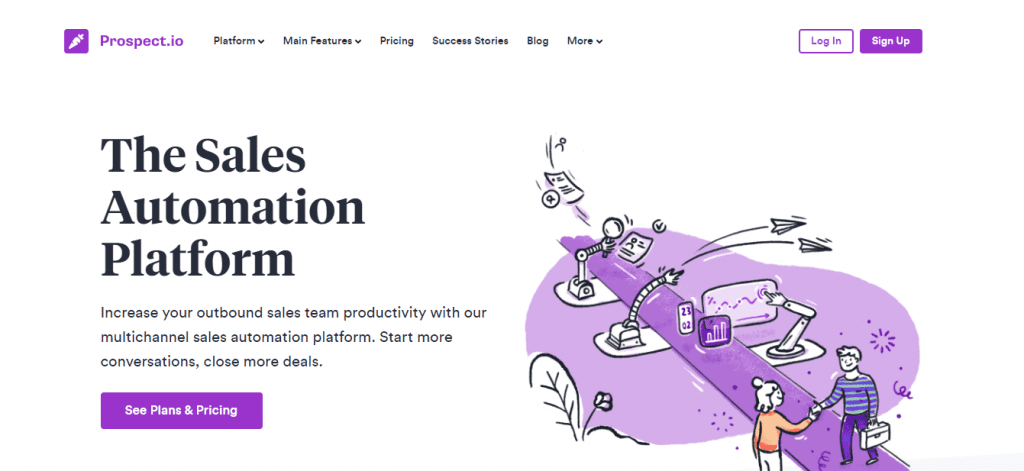
Best For: Small to mid-sized sales teams who want a user-friendly all-in-one platform for multi-channel outbound campaigns.
Key Features: AI-powered campaign and email creation. Database of 450+ million contacts. Workflow automation. Email verification. Native CRM integrations. Performance analytics. LinkedIn automation and cold calls.
Pricing: Starter Plan: $69/user/month. Growth Plan: $99/user/month. Enterprise: Custom pricing.
Pros:
- Eases manual workload
- User-friendly interface
- Effective multi-channel campaigns
Cons:
- Occasional customer support delays
- Some tracking inaccuracies
- Expensive for small businesses
Mailshake
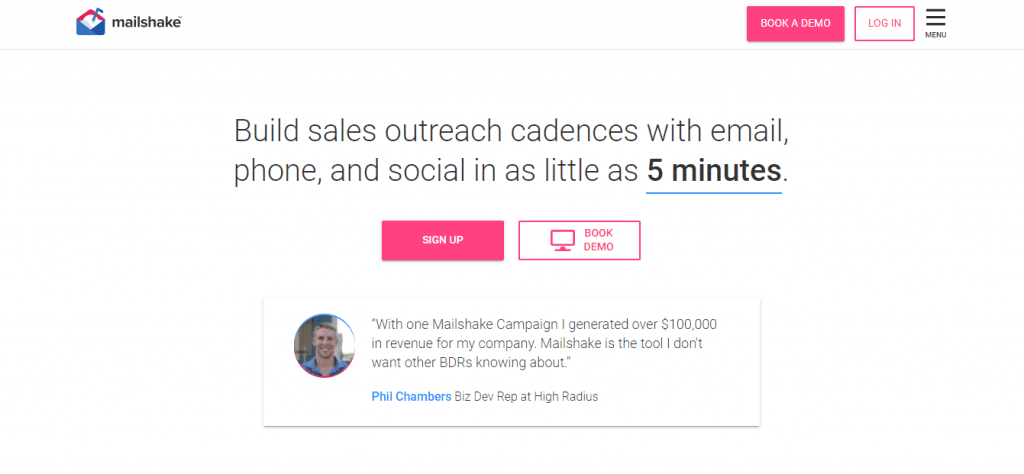
Best For: Sales teams, marketers and agencies focused on straightforward email and phone outreach who already have lead lists and value ease of use.
Key Features: Multichannel sales engagement (email, phone dialer, LinkedIn automation). Email automation and personalization. SHAKEspeare AI Writer. Lead Catcher unified inbox. Deliverability tools including email warm-up. Analytics and A/B testing.
Pricing: Starter: $29/month. Email Outreach: $59/month. Sales Engagement: $99/month.
Pros:
- Simple interface good for beginners
- Built-in phone dialer with unlimited US/Canada calls
- AI email writing assistant
Cons:
- Lacks built-in lead database
- Limited analytics compared to competitors
- No free plan
Yesware
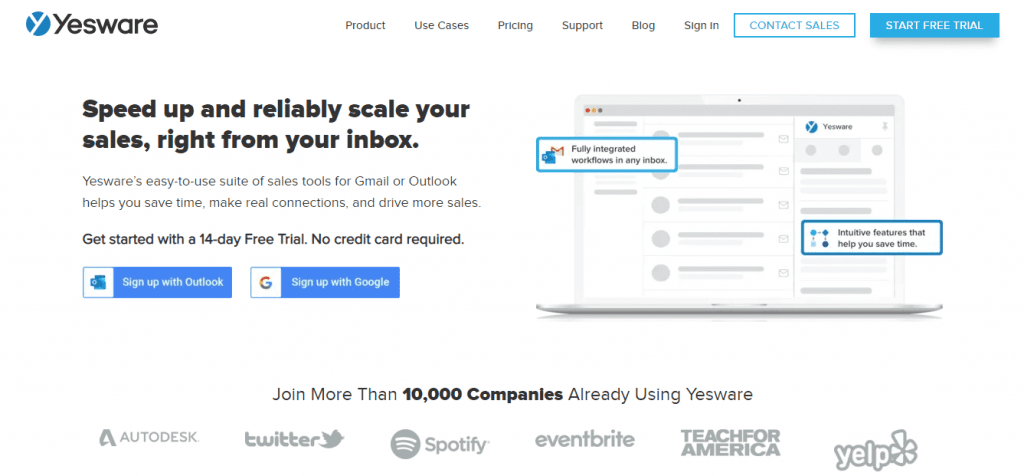
Best For: Sales professionals and SMB teams who are heavy Gmail/Outlook users and need a straightforward inbox-centric tool for email tracking and sales automation, especially Salesforce users.
Key Features: Email and attachment tracking with real-time notifications. Multi-channel campaigns (email, calls, LinkedIn InMails). Meeting scheduler with calendar integration. Email templates. Reporting and analytics. CRM integration (primarily Salesforce).
Pricing: Free Forever: $0. Pro: ~$19/month. Premium: ~$45/month. Enterprise: ~$85/month.
Pros:
- Seamless Gmail/Outlook integration
- Strong email tracking
- Good for teams with shared templates
Cons:
- Core features only in expensive plans
- Limited integrations beyond Salesforce
- Lacks A/B testing
Mixmax
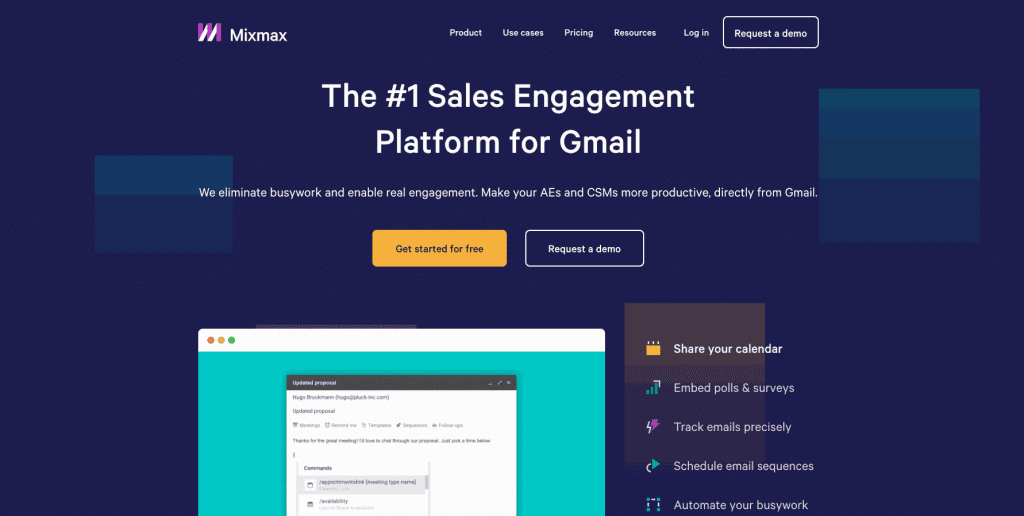
Best For: Individuals and sales/revenue teams who live in Gmail and want to maximize productivity with advanced scheduling, interactive emails and powerful workflow automation.
Key Features: Gmail productivity enhancements (polls, surveys, link previews). Email tracking and analytics. Sequences automation. One-click meeting scheduling. AI features (AI Compose, Smart Send). Workflow automation. Integrations with Salesforce, HubSpot and Pipedrive.
Pricing: Free: $0. SMB: $29/month. Growth: $49/month. Growth + CRM: $69/month. Enterprise: Custom pricing.
Pros:
- Excellent for enhancing Gmail with interactive elements
- Powerful automation and workflow rules
- Strong scheduling features
Cons:
- Essential features only in paid plans which can be costly
- Lacks dedicated mobile app
- Limited campaign functionality vs specialized mass-email tools
Salesloft
Best For: Enterprise sales teams who want a comprehensive sales engagement platform with advanced features and coaching capabilities.
Key Features: Sales engagement automation. Cadence management. Email and call tracking. Conversation intelligence. Pipeline management. Coaching tools. Advanced analytics and reporting.
Pricing: Custom pricing based on team size and features required.
Pros:
- Comprehensive sales engagement platform
- Strong coaching and training features
- Advanced analytics
Cons:
- Expensive, best for larger teams
- Can be complex to set up
- Overkill for small businesses
SalesHandy
Best For: Sales professionals and small teams who need affordable cold email outreach with solid tracking and automation capabilities.
Key Features: Cold email sequences. Email tracking and analytics. Automated follow-ups. Email scheduling. Document tracking. Prospect finder.
Pricing: Free Plan available with limited features. Paid plans start at affordable rates for small teams.
Pros:
- Affordable pricing
- Simple interface
- Good for cold email campaigns
Cons:
- Limited advanced features
- Fewer integrations
- Basic reporting
Best for Developers and Transactional Email
SendGrid
Best For: Developers and businesses who prioritize email deliverability with strong API capabilities for transactional and marketing emails.
Key Features: Powerful email API. Email validation and verification. Deliverability insights. Drag-and-drop editor. Template management. Detailed analytics.
Pricing: Free Plan: Up to 100 emails/day. Paid plans start at $19.95/month for 50,000 emails.
Pros:
- Excellent deliverability focus
- Strong API for developers
- Email validation included
Cons:
- Can be complex for non-technical users
- Free plan limited (100 emails/day)
- Pricing can get expensive at scale
Mailgun
Best For: Developers who need a powerful email API with effective email verification capabilities and advanced analytics.
Key Features: Email API for developers. Bulk email validation. Detailed analytics. Email parsing. Inbound routing. Webhook support.
Pricing: Pay-as-you-go pricing starts at $0.80 per 1,000 emails. Foundation plan at $35/month for 50,000 emails.
Pros:
- Powerful API for developers
- Excellent email verification
- Flexible pay-as-you-go pricing
Cons:
- Not user-friendly for non-developers
- No visual email builder
- Requires technical knowledge
SparkPost
Best For: Businesses who need high-volume email delivery with advanced analytics and deliverability optimization.
Key Features: Email delivery platform. Dynamic templates. Robust analytics. Predictive analytics. Deliverability tools. A/B testing.
Pricing: Free Plan: Up to 500 emails/month. Paid plans start at $20/month for 50,000 emails.
Pros:
- Advanced analytics and reporting
- Strong deliverability focus
- Dynamic template system
Cons:
- Free plan limited (500 emails/month)
- More technical than marketing-focused platforms
- Steeper learning curve
Best for Marketing Automation
ActiveCampaign
Best For: Growing businesses who want powerful marketing automation at affordable prices with basic CRM capabilities.
Key Features: Advanced marketing automation. Email marketing. CRM with sales automation. Lead scoring. Site tracking. SMS marketing. Predictive sending.
Pricing: Plans start at $15/month for up to 500 contacts. Pricing scales with contacts and features.
Pros:
- Powerful automation capabilities
- Includes basic CRM
- Affordable for small businesses
Cons:
- Can be complex for beginners
- Pricing increases with contact list growth
- Learning curve for advanced features
EngageBay
Best For: Small businesses and startups who want an affordable all-in-one marketing, sales and service platform.
Key Features: Email marketing with drag-and-drop automation. 1000s of predesigned responsive HTML email templates. Built-in free CRM. Email builder. Landing pages. Live chat. Helpdesk.
Pricing: Free Plan available. Paid plans start at affordable rates.
Pros:
- Highly affordable
- All-in-one platform (marketing, sales, service)
- Extensive template library
Cons:
- Less advanced than specialized platforms
- Fewer integrations
- May lack some enterprise features
How UpLead Helps You Build Your Email List
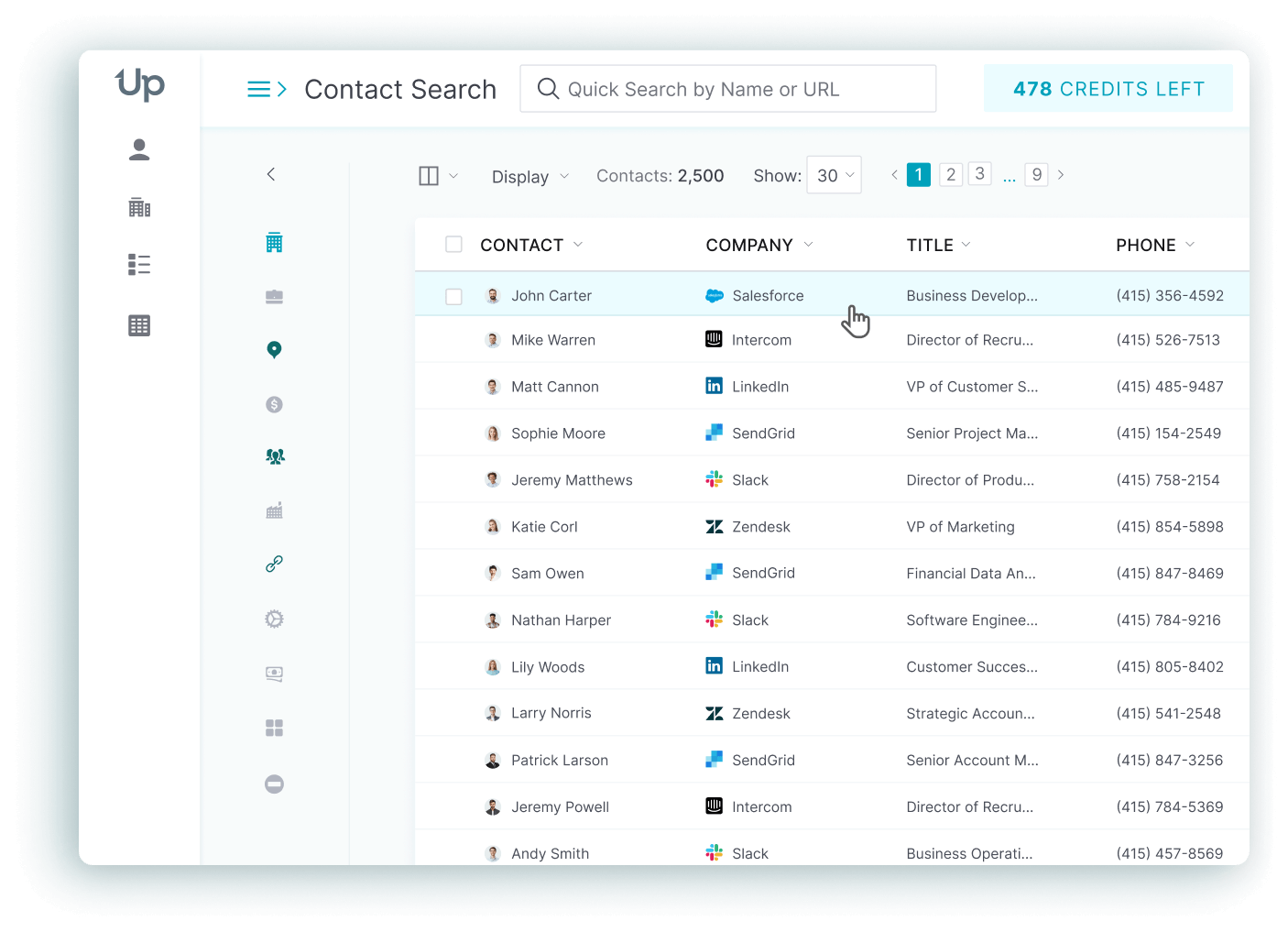
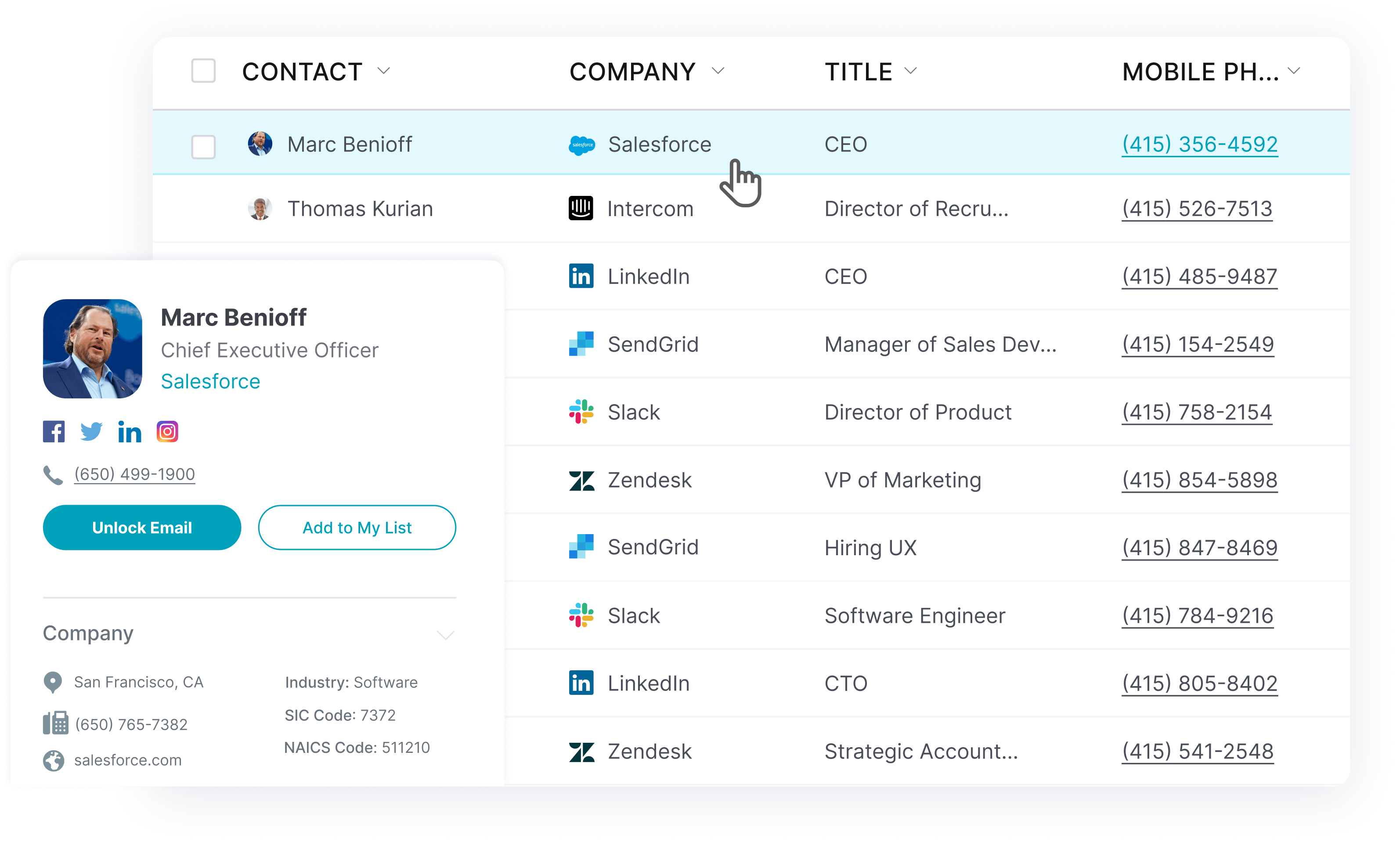
Mass email tools help you manage your email lists. Lead generation tools like UpLead help you build them.
With UpLead, you can create a new mailing list or grow the one you have with fresh leads. Once you’ve selected them, UpLead verifies all emails in real time to help you ensure deliverability. You get the full profile for free if an email doesn’t pass the verification process.
UpLead also allows you to enrich your current mail database with business information to segment your audience. That way, you can ensure each contact receives emails that are relevant to them.
UpLead also gives you the flexibility you need for your sales process. There are no contracts or annual deals. Pick your best plan and pay as you go.
Try UpLead for free today and see if it’s a good fit for you.

How Can You Send Mass Emails Without Spamming?
You can send mass emails without spamming by following these 10 best practices. These practices ensure your emails land in inboxes, stay compliant with laws and build trust with your audience.
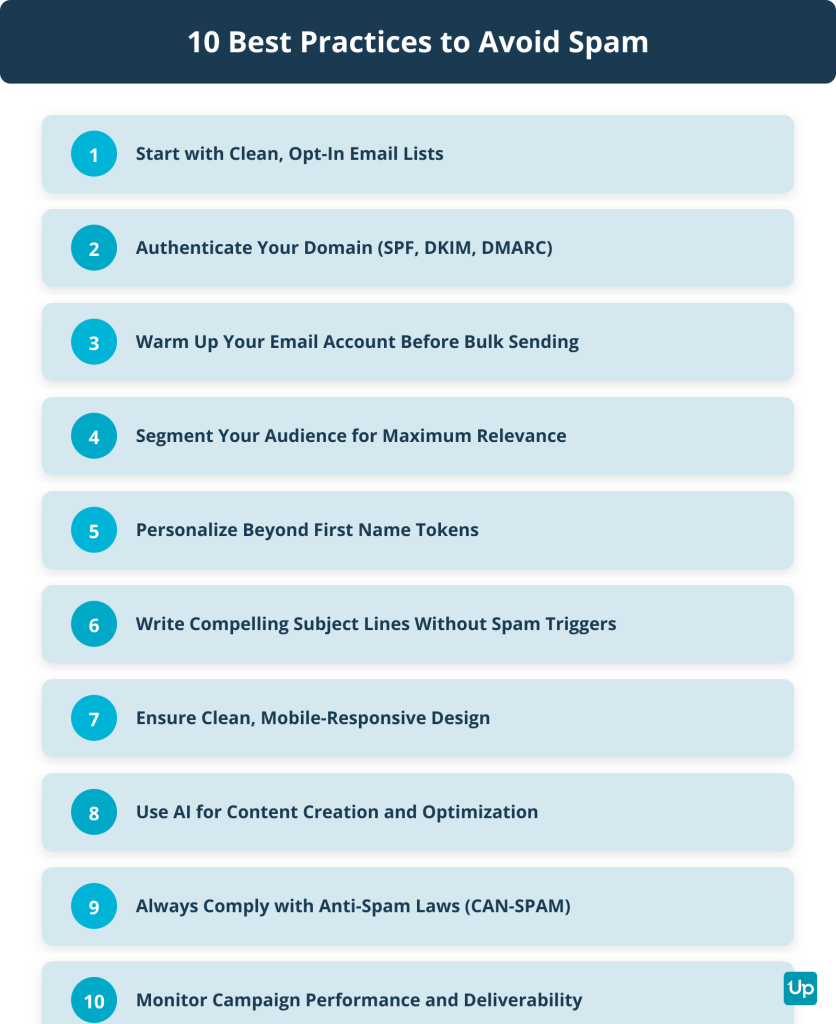
Start with a Clean, Opt-In Email List
A clean opt-in email list is the foundation of successful mass emailing.
Only send emails to people who have given you permission. Use double opt-in whenever possible. Subscribers confirm their email address after signing up. This ensures they want to hear from you.
Remove bounced and invalid emails often. High bounce rates damage your sender reputation. They signal to ISPs that you’re sending to low-quality lists. Clean your lists every six months. Remove inactive subscribers who haven’t engaged with your emails.
Manage inactive subscribers with re-engagement campaigns. If they still don’t respond, remove them from your list to maintain a healthy engagement rate.
How to Authenticate Your Domain for Mass Emailing
Domain authentication is mandatory for serious mass emailing in 2025.
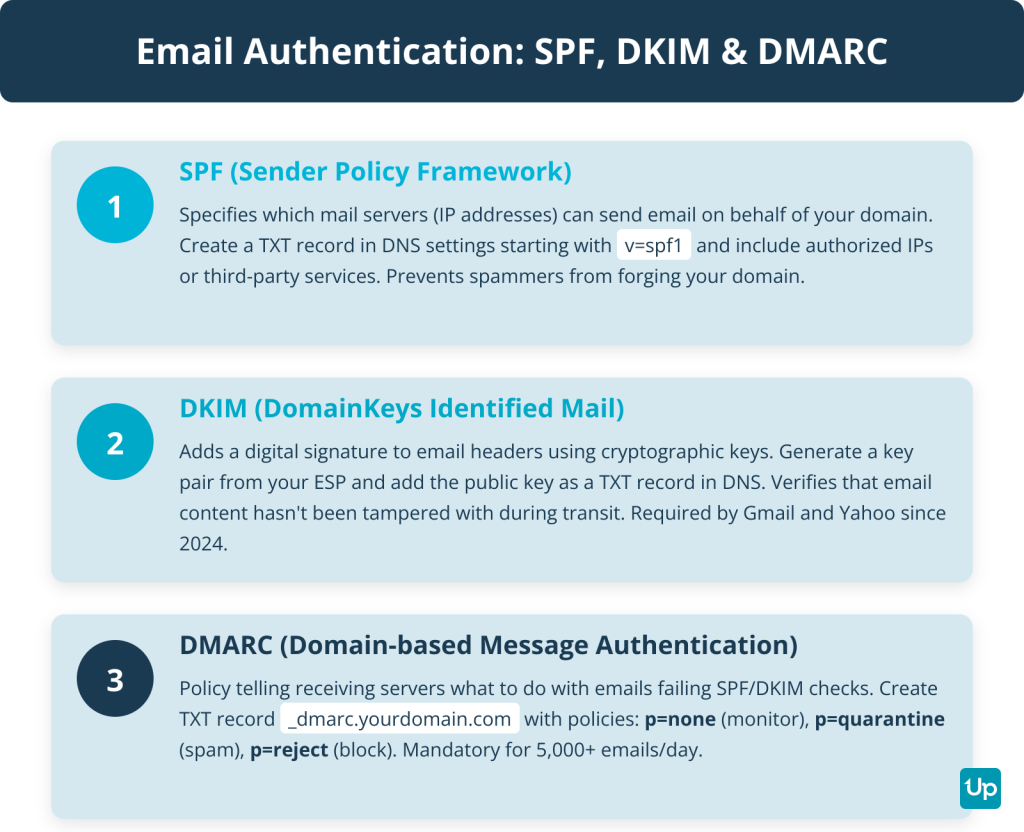
Since February 2024, Google and Yahoo require all senders to have at least SPF or DKIM set up. For bulk senders who send more than 5,000 emails per day, SPF, DKIM and a DMARC policy are mandatory. Failure to comply results in emails being blocked or sent to spam.
SPF (Sender Policy Framework): An email authentication method that specifies which mail servers (IP addresses) can send email on behalf of your domain. Create a TXT record in your domain’s DNS settings. Start with `v=spf1` and include IP addresses or `include:` statements for third-party services.
DKIM (DomainKeys Identified Mail): Adds a digital signature to the header of every outgoing email. It uses cryptographic keys. Generate a key pair from your email service provider. Add the public key as a TXT record in your DNS.
DMARC (Domain-based Message Authentication, Reporting & Conformance): A policy that tells receiving mail servers what to do with emails that fail SPF or DKIM checks. Create a TXT record named `_dmarc.yourdomain.com` with policies like `p=none` (monitoring), `p=quarantine` (spam folder) or `p=reject` (block completely). Start with `p=none` to collect data before enforcing stricter policies.
How to Warm Up Your Email Account Before Sending in Bulk
When a domain or IP address is new, it has no sending history. This makes it cold.
ISPs like Gmail and Outlook are suspicious of high-volume sending from cold sources. This is a common spammer tactic. The warm-up process builds a positive sender reputation. It proves you are a legitimate sender and improves deliverability.
Start by sending a low volume of emails (for example, 10-50 per day). Slowly increase the sending volume on a daily or weekly schedule. A common strategy is to double the volume every few days at first. Then increase by 20-50% as volume grows. The process takes 4 to 8 weeks.
Target your most active and engaged subscribers first. These are people likely to open and reply to your emails. Maintain a consistent sending pattern rather than sudden spikes.
Monitor key metrics like open rates, click rates, bounce rates and spam complaints throughout the process.
Domain vs. IP Warm-Up: Domain warm-up focuses on building the reputation of your sending domain. It is necessary for all new sending domains. IP warm-up focuses on building the reputation of a new dedicated IP address. It is only necessary for high-volume senders who purchase a dedicated IP from their ESP.
Segment Your Audience for Maximum Relevance
Audience segmentation divides your current user base into subgroups of similar users.
These subgroups are then funneled into the marketing strategies they’re more likely to engage with. Audience segmentation is a simple way to ensure your audience only gets email content that’s relevant to them.
With audience segmentation, you can subdivide your audience into common user personas. Engage them with the right campaign according to where they are in their customer journey.
Segment by demographic (age, location, job title), behavioral (purchase history, email engagement), lifecycle stage (new subscriber, active customer, churned user) and engagement level (highly engaged, moderately engaged, inactive).
Proper audience segmentation ensures you’re nurturing the right leads with the right marketing campaigns. Your sales team can contact any leads ready to convert.
Personalize Your Emails Beyond the First Name
Personalization goes far beyond inserting a first name token.
Use dynamic content blocks that change based on recipient data. For example, show different product recommendations based on past purchases or browsing behavior.
Send triggered emails based on user behavior. Examples include cart abandonment emails, welcome series for new subscribers or re-engagement campaigns for inactive users.
Personalize the sender name to make emails feel more human. Emails from “Sarah at UpLead” perform better than emails from “UpLead Team.”
Write Compelling Subject Lines That Avoid Spam Triggers
Your subject line determines whether your email gets opened or ignored.
Avoid spam trigger words like “Free,” “Act Now,” “Limited Time,” “Congratulations” or “Click Here.” Don’t use ALL CAPS or excessive punctuation like “!!!” or “???”
Be clear and specific about what the email contains. Vague or misleading subject lines increase spam complaints.
Keep subject lines under 40-60 characters so they display fully on mobile devices.
Test different subject lines with A/B testing to see what resonates with your audience.
Ensure Your Email Design Is Clean and Mobile-Responsive
More than half of all emails are opened on mobile devices.
Use a single-column layout that adapts to smaller screens. Use 16px or larger body text for easy reading on mobile. Make buttons large and tappable (at least 44×44 pixels).
Include plenty of white space to prevent your email from looking cluttered.
Optimize images so they load fast. Always include alt text in case images don’t display.
How Can AI Enhance Your Mass Email Campaigns?
In 2025, AI is integral to mass emailing. 63% of marketers use it for campaigns. This leads to a reported 41% increase in revenue.
Key applications fall into three main categories:
Content and Subject Line Creation: AI tools use Natural Language Generation (NLG) to create compelling subject lines and email copy. They analyze datasets of high-performing emails to generate options tailored to specific audiences, tones and campaign goals. This saves time and helps overcome creative blocks.
Personalization at Scale: AI moves beyond basic first name tokens to enable hyper-personalization. It analyzes user data like browsing history, purchase behavior and real-time actions. It dynamically customizes email content, product recommendations and offers for each recipient. This can increase open rates by up to 50% compared to non-personalized emails.
Performance Optimization: AI automates campaign performance through send-time optimization. It analyzes each individual’s engagement patterns to predict optimal delivery times. This increases open rates by up to 30%. AI also handles automated A/B testing of multiple variations and deliverability management. It identifies potential reputation issues and manages sending frequency.
Always Comply with Anti-Spam Laws
Mass email is legal in the United States as long as it complies with the CAN-SPAM Act.
Key requirements include: don’t use deceptive headers or subject lines, identify the message as an ad, include a physical address, provide an opt-out mechanism and honor opt-outs within 10 business days.
As of 2024, each separate email that violates the CAN-SPAM Act is subject to penalties of up to $53,088. Both the company whose product is promoted and the company that sends the message can be held legally responsible.
An unsubscribe link is a hyperlink at the bottom of an email. It allows the user to opt out of a mailing list.
Unsubscribe links are vital for email deliverability. Not including an unsubscribe link (or one that doesn’t work) will provide a bad customer experience. It can negatively affect your deliverability.
When used correctly, you can get valuable data from unsubscribing trends. Use that data to limit future unsubscribe requests.
Monitor Your Campaign Performance and Deliverability
Track key metrics to understand how your campaigns perform.
Monitor bounce rates (keep under 2%), spam complaints (keep under 0.1%), open rates, click-through rates and conversion rates.
Check your sender reputation often. Use tools like Google Postmaster Tools or Sender Score.
Use pre-send tools to test your emails for spam triggers before sending. Use post-send tools to monitor inbox placement and identify deliverability issues.
Test and optimize your campaigns based on data. What works today may not work tomorrow. Stay agile.
How Can You Send Mass Emails from Gmail?
You can send mass emails from Gmail for small lists only.
Free Gmail accounts are limited to 500 emails or recipients in a rolling 24-hour period. One email to 500 recipients counts as 500 emails. Exceeding the limit results in a temporary block for up to 24 hours.
Paid Google Workspace accounts have higher limits of up to 2,000 emails per day per user account. When you use the built-in mail merge (multi-send) feature in Workspace accounts, the limit is 1,500 recipients per day. This is part of the overall 2,000-email allowance.
New Google Workspace accounts in trial period have the same 500-email/day limit as free accounts. Limits increase after 60 days of activity and $100 cumulative billing.
Using Gmail’s BCC Method for Free Accounts
Here’s how to send a mass email using Gmail:
- Step 1: Log in to your Gmail account.
- Step 2: Compose a new email.
- Step 3: Use the BCC option to add your contacts.
- Step 4: Send your email.
Remember that Gmail will limit the number of emails you can send and receive to only 500 every 24 hours. Don’t try to send too many emails, especially if you’re expecting a response.
Using Google Workspace Mail Merge for Paid Accounts
Paid Google Workspace accounts can use the built-in Mail Merge feature to send personalized mass emails to up to 1,500 recipients per day.
This feature allows you to create a template email and automatically personalize it with data from a Google Sheet. Examples include names, companies or custom fields.
Do’s and Don’ts for Gmail Mass Emailing
Here are a few do’s and don’ts when you use Gmail to send mass emails:
- Don’t use it for large mass email needs. Choose a bulk email marketing tool if you need to send or follow up on over 500 emails daily.
- Don’t CC your email list. Use BCC to protect people’s email addresses and privacy.
- Do use Gmail’s Google Group feature. It will allow you to segment your audience for mass emailing.
- Do wait a full 24 hours between bulk email blasts. The system will count down the hours from when you sent your emails instead of resetting at midnight or at a different time.
How Can You Send Mass Emails from Outlook?
You can send mass emails from Outlook for small lists only.
Outlook’s sending limits vary between free and paid accounts.
Free Outlook.com Accounts: Daily recipient limit is commonly cited as 300 recipients per day for established free accounts, with up to 100 recipients per message. New accounts have temporary low quotas (10-100 emails/day) which increase as credibility is established.
Paid Microsoft 365 Business / Exchange Online Accounts: Up to 10,000 recipients in a rolling 24-hour period. Up to 500 recipients per single email. Up to 30 messages per minute.
Important 2025 Update: Starting from January 2025, of the 10,000 total daily recipients, a maximum of 2,000 can be external recipients.
Using Outlook’s Mail Merge Feature
Here’s how to send a mass email using Outlook:
- Step 1: Craft your email with Word.
- Step 2: Upon completion, go to the Mailings ribbon.
- Step 3: Go to the Start Mail Merge menu and select E-mail Messages.
- Step 4: Add your recipients from a new or existing list or import them from Outlook Contacts.
- Step 5: Select Finish & Merge, write a subject line and send your email.
Do’s and Don’ts for Outlook Mass Emailing
Here are a few dos and dont’s when you use Outlook to send mass emails:
- Do use Outlook and Word whenever possible. Since there’s no drag-and-drop builder or dynamic templates, Word can help you create good email messages.
- Don’t use Outlook if you need to send constant bulk email blasts. Its limitations will become apparent.
- Don’t use it for cold emailing. Email messages sent from an ISP like Outlook will often be flagged as spam when they’re not used for personal use.
- Do use an email validation tool to ensure deliverability.
- Do use a reputable email service provider.
Mass Emails FAQ
Here are some answers to frequently asked questions about how to send mass emails and bulk email tools.
A mass email or bulk email can be defined as an email blast sent to a large audience. This is typically an affordable part of a larger marketing strategy since bulk email blasts can be extremely cost-effective.
Yes, mass email is legal as long as you comply with spam laws. These laws usually ask users to add an opt-out feature and not to sell data collected from mass email sending. As of 2024, each separate email that violates the CAN-SPAM Act is subject to penalties of up to $53,088.
Mass email sending is best to use when looking for a cost-effective way of reaching multiple users simultaneously. Through newsletters, email blasts and quick messages, users can keep their contacts well-informed without spending a lot of money.
It will likely depend on your audience, industry and other factors. However, 10% is generally thought of as a reasonable response rate.
Yes, Gmail only allows users to send or receive 500 emails every 24 hours for free accounts. Paid Google Workspace accounts allow up to 2,000 emails per day. Bulk emails sent through Gmail are more likely to fall into spam folders and lack basic sales and marketing features.
Free Outlook.com accounts can send up to 300 emails daily. Paid Microsoft 365 accounts allow up to 10,000 recipients per day, but starting January 2025, only 2,000 of those can be external recipients. Users who send bulk emails in Outlook are more likely to be filtered out as spam since Outlook and most platforms like it are intended for personal emailing needs.
You can email a small audience through free tools like Gmail or Outlook. You can also use free tiers of paid email marketing tools to send mass emails to your audience.
Yes. However, it will involve having to personalize emails enough to ensure you’re sending relevant content to your audience and will land in their inbox. Finally, it’s also important to comply with and follow anti-spam laws to ensure your email blast is expected instead of being labeled as spam.
Mass Emails: Conclusion
Nowadays, sending emails to the right users is easier than ever, especially when you use the right tools. Try tools like UpLead to develop your mailing list and send mass email blasts to the best leads today.